
Updated: June 2026 | 9 min read
Find verified B2B emails from LinkedIn in minutes - explore 8 proven methods and the 10 best tools, from free manual tactics to keyword-based automation with SoLeads.ai.

LinkedIn is home to over 1 billion professionals - and for B2B sales, recruiting, and growth teams, that makes it the single most valuable prospecting database on the planet. The problem? How to find emails on LinkedIn? LinkedIn doesn't let you export email addresses directly. Finding the right contact is only half the battle; actually reaching them is another story.
That's exactly what this guide solves.
Whether you're a founder cold-outreaching your first 100 customers, an SDR building a targeted prospect list, or a recruiter trying to reach passive candidates without burning through InMail credits - this guide covers every method available in 2026, from free manual tactics to automated tools that return verified emails in seconds.
Part 1: Understanding What's Possible
What Types of Emails Can You Find on LinkedIn?
Not all LinkedIn emails are created equal. Before you start, it helps to understand what you're actually looking for.
Publicly displayed emails are addresses that users have voluntarily added to their "Contact Info" section and made visible to connections or the public. These are the most reliable - the person clearly wants to be reachable.
Enriched emails are addresses discovered by cross-referencing a LinkedIn profile (name, company, job title) against external data sources. Most email finder tools work this way. The accuracy depends on how fresh and well-sourced the underlying database is.
Guessed emails are addresses constructed by combining a person's name with a known company domain format (e.g., [email protected]). These require verification before use.
A valid email format doesn't mean the address is actively monitored. Always verify before sending at scale.
Why LinkedIn Emails Still Drive Real Results in 2026
LinkedIn leads convert at roughly 3x the rate of leads from other social channels, according to HubSpot's B2B benchmarks. When you combine that with direct email outreach - which has an average open rate of 20–40% in B2B - the combination is hard to beat.
Direct email also outperforms LinkedIn InMail in several practical ways: no platform algorithm throttling your delivery, no character limits, no $80+/month premium requirement to message strangers, and no dependency on whether your prospect checks their LinkedIn notifications.
Part 2: 8 Methods to Find Emails on LinkedIn
Method 1: Check the LinkedIn "Contact Info" Section Directly
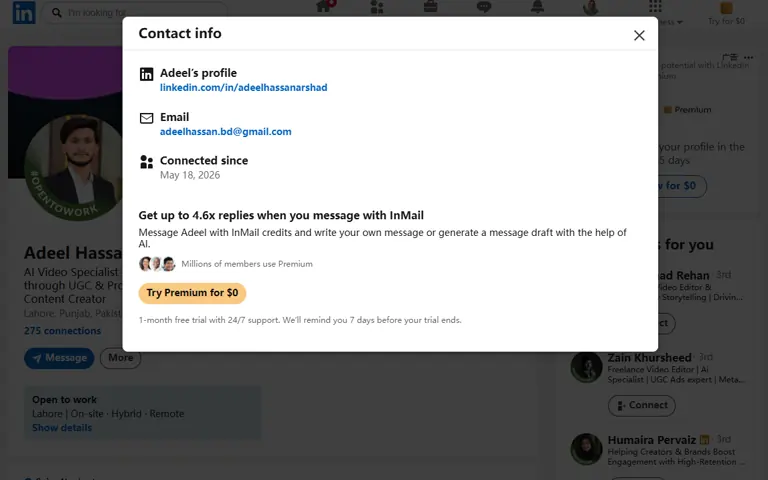
The most overlooked place to start is often the most reliable.
Many LinkedIn users - especially those in sales, partnerships, growth, and recruitment - publicly list their email address in their profile's Contact Info section. They want people to reach out.
How to find emails on LinkedIn:
- Go to the person's LinkedIn profile
- Click "Contact info" (below their headline, next to the message button)
- If they've made their email visible, it will appear here along with any phone numbers and website links
What you gain beyond just the email: Even if no email is listed, you can often see their website URL - which reveals their company domain and lets you guess their email format.
⚡ Difficulty: ★☆☆ Easy 💰 Cost: Free 📦 Scale: 1–20 contacts ✅ Best for: Targeted, high-value outreach where you're researching each person individually
Limitation: Only about 15–20% of LinkedIn users publicly display their email address. Effective for small lists, but not scalable.
Method 2: Export Your LinkedIn Connections (Official LinkedIn Feature)
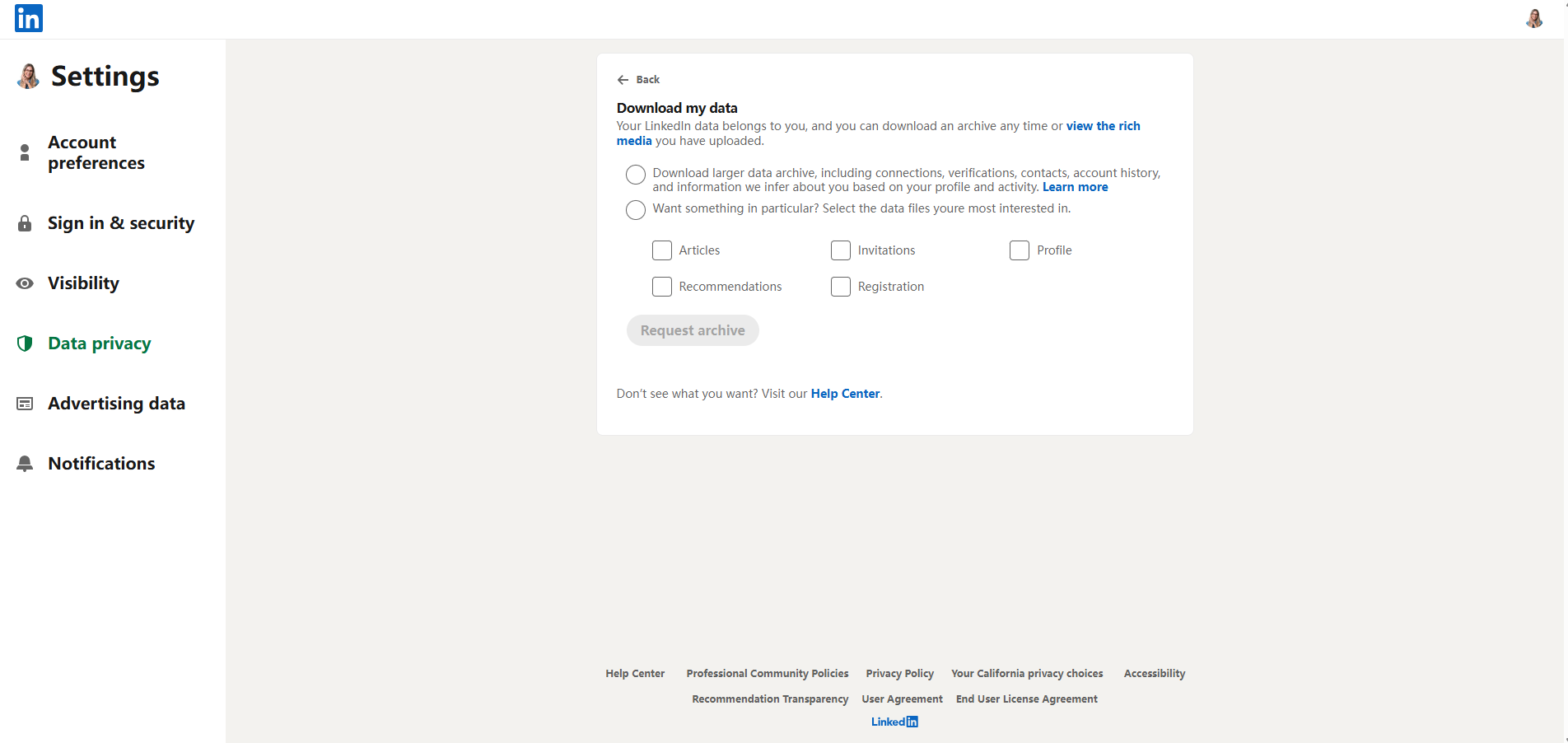
This is a legitimate, built-in LinkedIn feature that almost nobody talks about - and it's completely free.
LinkedIn allows you to download a CSV of all your first-degree connections, which includes their email addresses if they have chosen to share them with connections.
How to find emails on LinkedIn:
- Go to Settings & Privacy (click your profile photo → Settings)
- Navigate to Data Privacy → Get a copy of your data
- Select "Connections" and request the archive
- LinkedIn will email you a download link within 10 minutes (or up to 24 hours)
- Open the CSV - it includes name, company, job title, connected date, and email (where shared)
⚡ Difficulty: ★☆☆ Easy 💰 Cost: Free 📦 Scale: Your entire 1st-degree network at once ✅ Best for: Reactivating dormant connections, mining your existing network for warm leads
Limitation: Only works for your direct connections. Many users don't opt to share their email even with connections. Still, for a free export of potentially thousands of contacts, this is one of the most underused tactics available.
Method 3: Chrome Extension Tools for Bulk Extraction
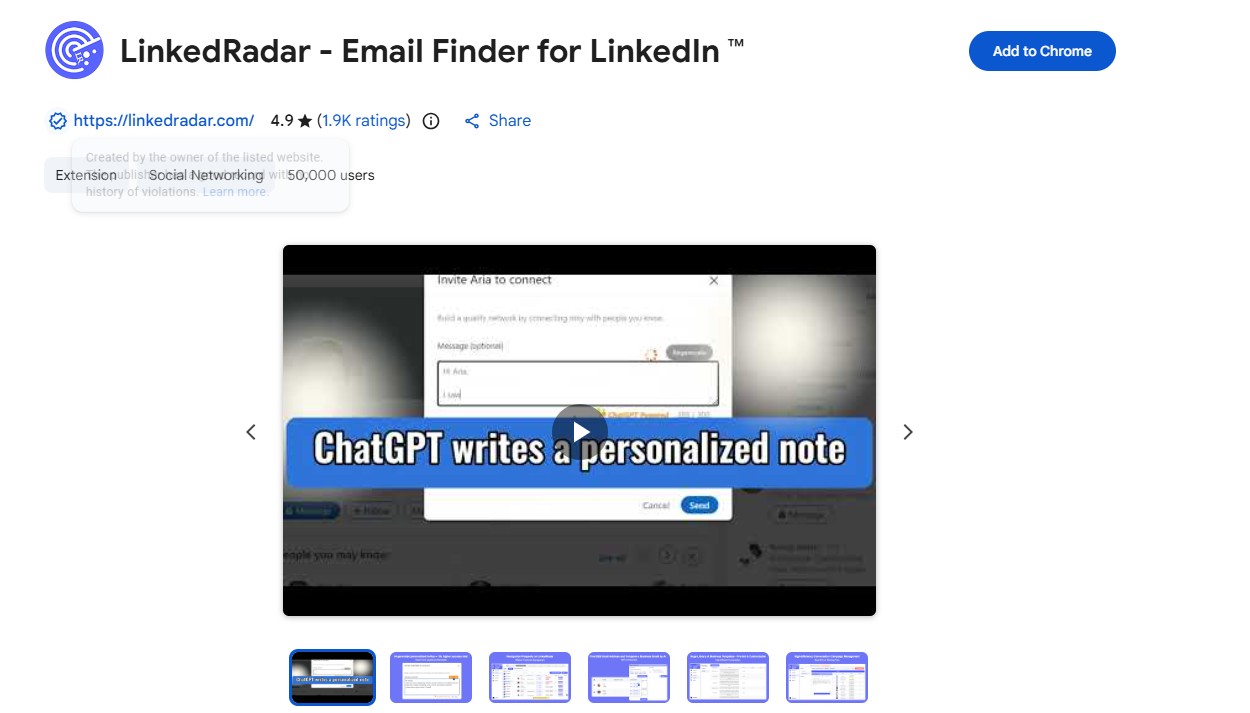
Chrome extensions for LinkedIn email finding sit in the browser and surface contact data as you browse LinkedIn profiles - or in bulk as you scroll through search results.
The workflow is simple: install the extension, run a LinkedIn search, and the tool surfaces verified email addresses alongside each profile, which you can export to a CSV or push directly into your CRM or outreach tool.
Recommended tool: LinkedRadar – Email Finder for LinkedIn
LinkedRadar is a dedicated Chrome extension for LinkedIn prospecting that combines email finding, CRM-style contact management, and B2B data enrichment in a single browser tool.
Key capabilities:
- Extract verified emails directly from LinkedIn profiles as you browse
- Bulk-extract emails from LinkedIn search results pages
- Built-in CRM to manage, tag, and track your prospects without leaving the browser
- Export contacts to CSV or integrate with your outreach tools
How to find emails on LinkedIn:
- Install LinkedRadar from the Chrome Web Store
- Log into LinkedIn as usual
- Navigate to a person's profile or run a LinkedIn People Search
- LinkedRadar's panel will activate - click to reveal and save the contact's email
- Export your collected contacts to CSV
⚡ Difficulty: ★★☆ Moderate 💰 Cost: Freemium (free tier available) 📦 Scale: 50–500+ contacts per session ✅ Best for: SDRs and sales teams who do daily LinkedIn prospecting and want a lightweight, browser-native workflow
Method 4: LinkedIn Sales Navigator + Third-Party Enrichment
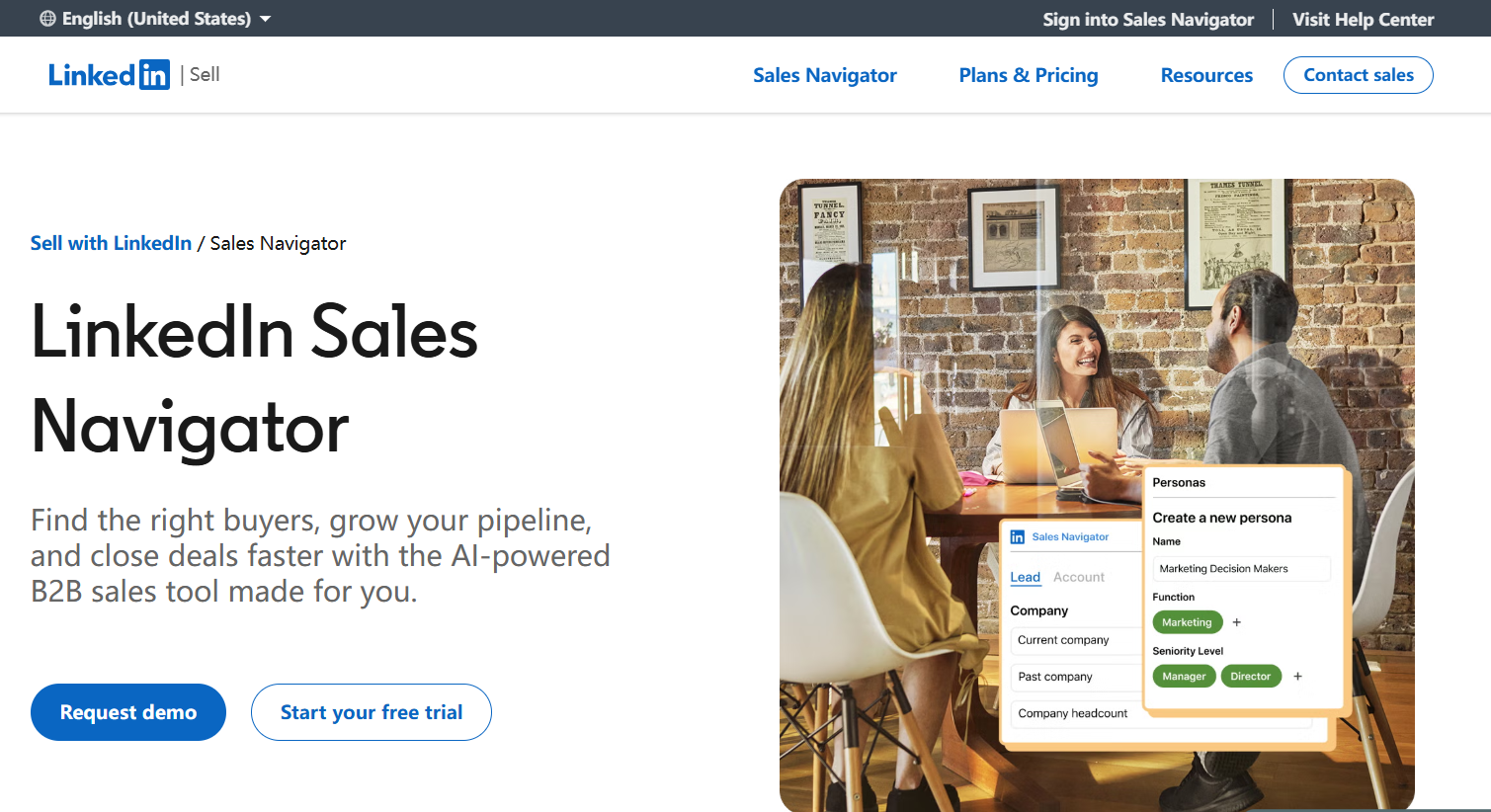
LinkedIn's premium Sales Navigator platform doesn't give you emails directly, but it dramatically improves how you find and filter the right prospects - and it integrates with enrichment tools to complete the picture.
The combined workflow:
- Subscribe to Sales Navigator (free trial available; paid plans start at ~$99/month)
- Use its advanced filters - job title, seniority, industry, company size, geography, years in role, recent job changes, and more - to build a hyper-targeted lead list
- Export the lead list (name, company, title, LinkedIn URL) to a CSV or CRM
- Run the list through an email enrichment tool like Hunter, or Apollo to append verified email addresses
Why it's powerful: Sales Navigator's filtering is leagues ahead of LinkedIn's free search. The combination of precise targeting plus email enrichment is the standard workflow at most enterprise sales teams.
⚡ Difficulty: ★★★ Advanced 💰 Cost: $99–$179/month for Sales Navigator + enrichment tool cost 📦 Scale: Hundreds to thousands of contacts ✅ Best for: Enterprise SDR teams, RevOps teams building systematic prospecting pipelines
Method 5: Keyword + Job Title + Location Search with SoLeads.ai
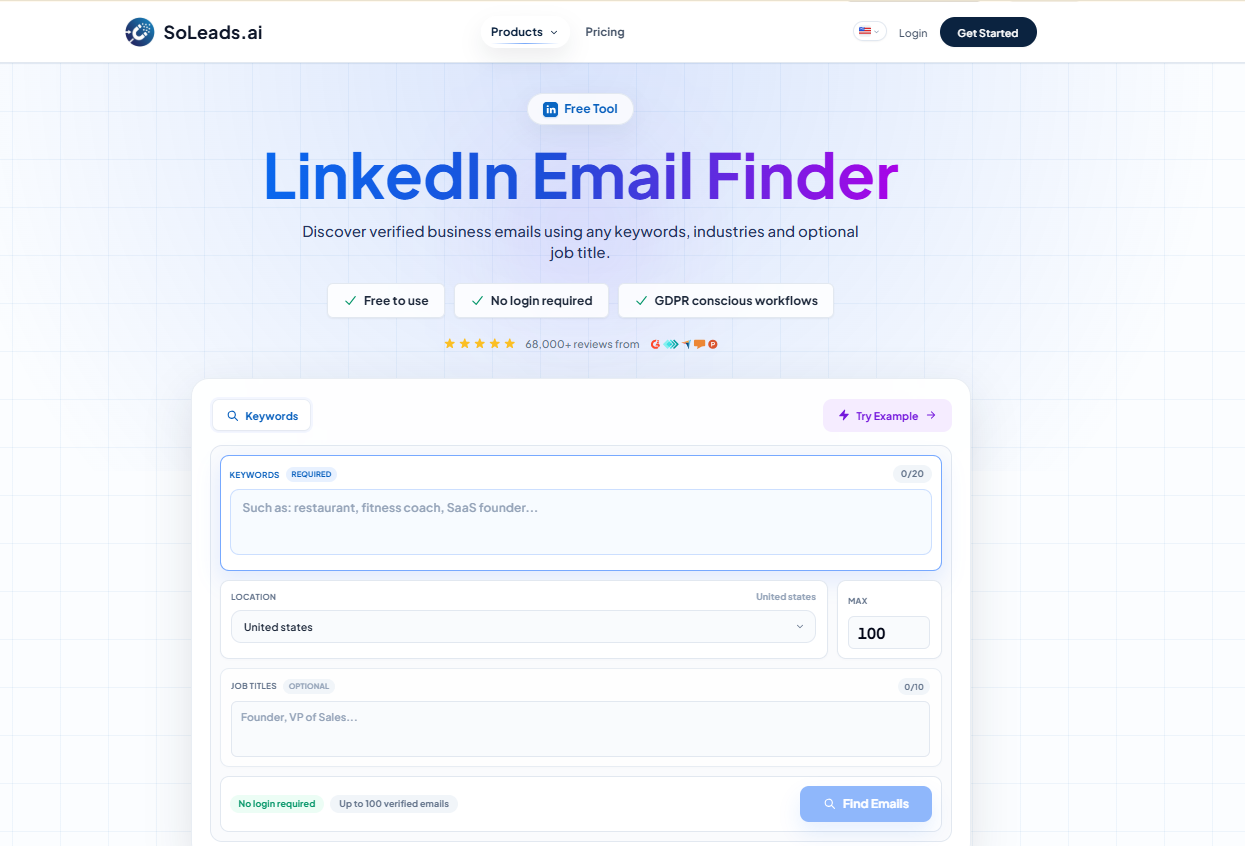
This is where most traditional methods break down - and where purpose-built tools like SoLeads.ai make a genuine difference.
The problem with manual LinkedIn searching is that even when you've found the right person, getting their email still requires opening each profile, hoping the info is listed, or running them through a separate tool. At any meaningful scale, that's hours of work per list.
SoLeads.ai (LinkedIn Email Finder) is built to skip all of that. You enter what you're looking for - a keyword, a job title, a location - and SoLeads.ai returns a list of verified, business-ready email addresses directly. No manual profile-browsing. No separate verification step. No stitching together multiple tools.
How to find emails on LinkedIn:
- Go to SoLeads.ai and log in
- Enter your target criteria: keyword (e.g., "SaaS," "fintech," "e-commerce"), job title (e.g., "Head of Marketing," "VP Sales"), and location (e.g., "New York," "London")
- SoLeads.ai searches across LinkedIn-sourced and enriched data to surface matching profiles
- Results include verified email addresses, ready to export or use in your outreach sequence
Why this approach is different:
Most email finder tools are profile-level - you give them a LinkedIn URL and they return an email. SoLeads.ai works at the search level - you describe who you want, and it builds the list for you. For anyone doing outbound prospecting at scale, this is a fundamentally faster workflow.
Example use case: You're selling a B2B SaaS product to HR leaders. You enter "HRIS," "Head of People," "United States" - and receive a ready-to-use list of verified emails, all from decision-makers matching your ICP.
⚡ Difficulty: ★☆☆ Easy 💰 Cost: Check current pricing at SoLeads.ai
📦 Scale: Tens to thousands of contacts ✅ Best for: SDRs, growth teams, founders, and agencies that need volume and precision without the manual overhead
Method 6: Guess the Email Pattern (Email Permutation)
If you know someone's full name and company domain, you can systematically test the most common corporate email formats to find the right one.
Common patterns to try:
How to find the pattern:
- Look up the company domain (from LinkedIn, their website, or a public email you already have)
- Use a tool like Hunter's Domain Search to see what email format the company uses
- Generate permutations for your target and verify using a free email checker
⚡ Difficulty: ★★☆ Moderate 💰 Cost: Free (verification tools may have limits) 📦 Scale: 1–30 contacts (labor-intensive at scale) ✅ Best for: High-value individual prospects when other methods haven't yielded a result
Important: Never send to unverified guesses in bulk. A high bounce rate damages your sender domain reputation and can trigger spam filters.
Method 7: Google X-Ray Search
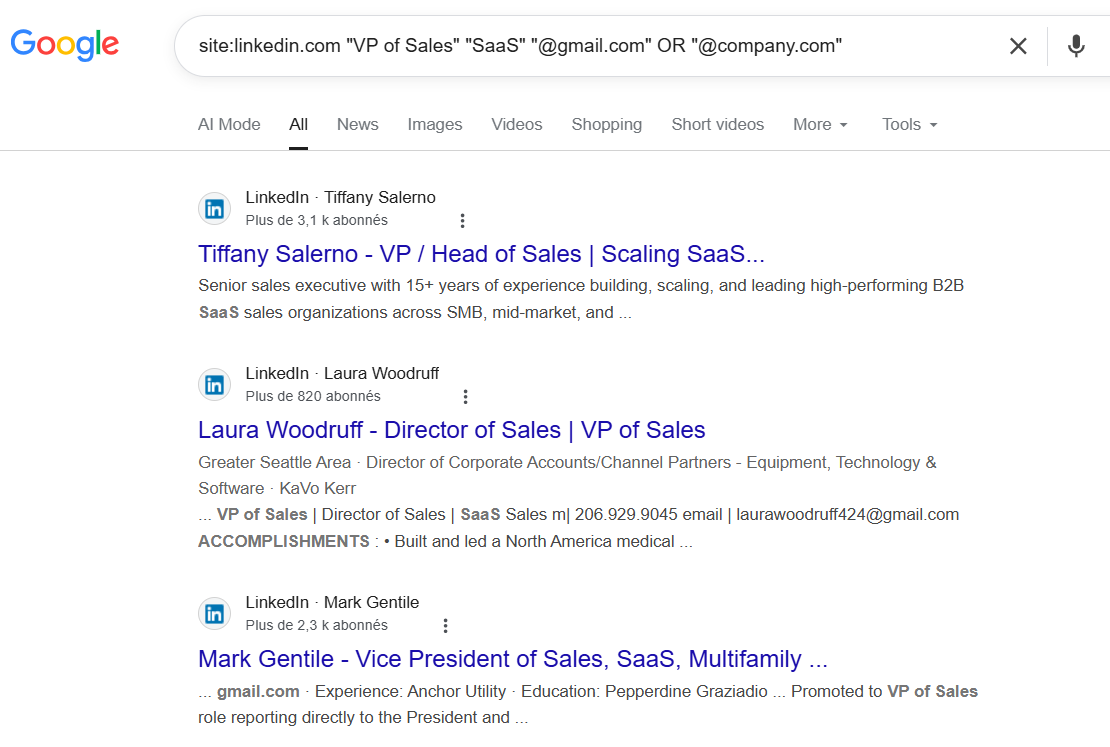
Google indexes a significant portion of public LinkedIn content, and with the right search syntax, you can surface email addresses that appear in public profiles or linked pages.
Basic syntax:
site:linkedin.com "VP of Sales" "SaaS" "@gmail.com" OR "@company.com"
More targeted approach:
"firstname lastname" "company name" email contact
Or combine with a company domain:
"@techcompany.com" "Director of Marketing" linkedin
⚡ Difficulty: ★★★ Advanced 💰 Cost: Free 📦 Scale: 1–10 contacts per search session ✅ Best for: Free research, finding emails for high-value targets when you don't want to use a paid tool
Limitation: Results are inconsistent and coverage is low. Most LinkedIn profiles don't expose email addresses in Google-indexable text. Use this as a last resort or supplementary tactic.
Method 8: Cross-Platform Research
For high-value targets - think ABM-level prospects or executive contacts - a multi-platform approach can surface contact information that no single tool can find.
Where to look:
- Personal website or portfolio (often linked from LinkedIn): Many professionals list a contact email publicly
- Twitter/X bio or pinned tweets: Common for founders, investors, and public speakers
- GitHub profile: Developers often list an email or personal domain
- Webinar and conference recordings: Speakers frequently display their email on slides
- Company press releases and blog posts: Authors are often listed with contact details
- Email signatures in published content: Articles, guest posts, or open newsletters
⚡ Difficulty: ★★★ Advanced 💰 Cost: Free 📦 Scale: 1–5 contacts (extremely time-intensive) ✅ Best for: ABM campaigns, executive-level outreach, high-ticket sales where deep research is worth the investment
Part 3: Methods at a Glance
| Method | Cost | Speed | Accuracy | Scalability | Compliance risk |
|---|---|---|---|---|---|
| LinkedIn contact info | Free | Slow | High | Very low |
None |
| Direct LinkedIn collection | Free | Medium | High | Low |
None |
| Chrome extension (LinkedRadar) | Freemium | Fast | Med-High | Medium |
Low |
| Sales Navigator + enrichment | High | Fast | High | High |
Low |
| Keyword search (SoLeads.ai) | Low-Med | Very fast | High | Very high |
Low |
| Email pattern guessing | Free | Slow | Medium | Very low |
Low |
| Google X-Ray search | Free | Slow | Low | Very low |
None |
| Cross-platform research | Free | Very slow | High | Minimal |
None |
Part 4: 10 Best LinkedIn Email Finder Tools (2026)
Here's an honest comparison of the best tools available, evaluated on data quality, ease of use, pricing, and fit for different team sizes.
| Tool | Best for | Accuracy | Free tier | From | Ideal for |
|---|---|---|---|---|---|
| SoLeads.aiTop Choice | Keyword-based bulk prospecting | High |
✓ | See pricing | Solo → Enterprise |
| Hunter.io | Domain search, transparent sourcing | Med-High |
✓ 50/mo | $49/mo | Solo → Small |
| Lusha | Phone + email, CRM integration | High |
✓ 40 credits | $49.9/mo | Small → Mid |
| Apollo.io | Full sales platform, large database | Medium |
✓ | $59/mo | Small → Enterprise |
| Snov.io | Find + verify + send in one platform | Med-High |
✓ 50 credits | $39/mo | Solo → Small |
| Skrapp.io | LinkedIn-focused bulk extraction | Medium |
✓ 50 credits | $39/mo | Solo → Small |
| UpLead | Highest verified accuracy guarantee | Very high |
✓ 5 credits | $99/mo | Mid → Enterprise |
| AeroLeads | LinkedIn integration + CRM export | Medium |
✓ | $49/mo | Solo → Small |
| LeadFuze | Auto-enrichment, enterprise filters | High |
✓ | $147/mo | Mid → Enterprise |
| Kaspr | GDPR-compliant, European markets | High |
✓ 25 credits | €59/mo | Solo → Mid |
🥇 SoLeads.ai - Top Choice
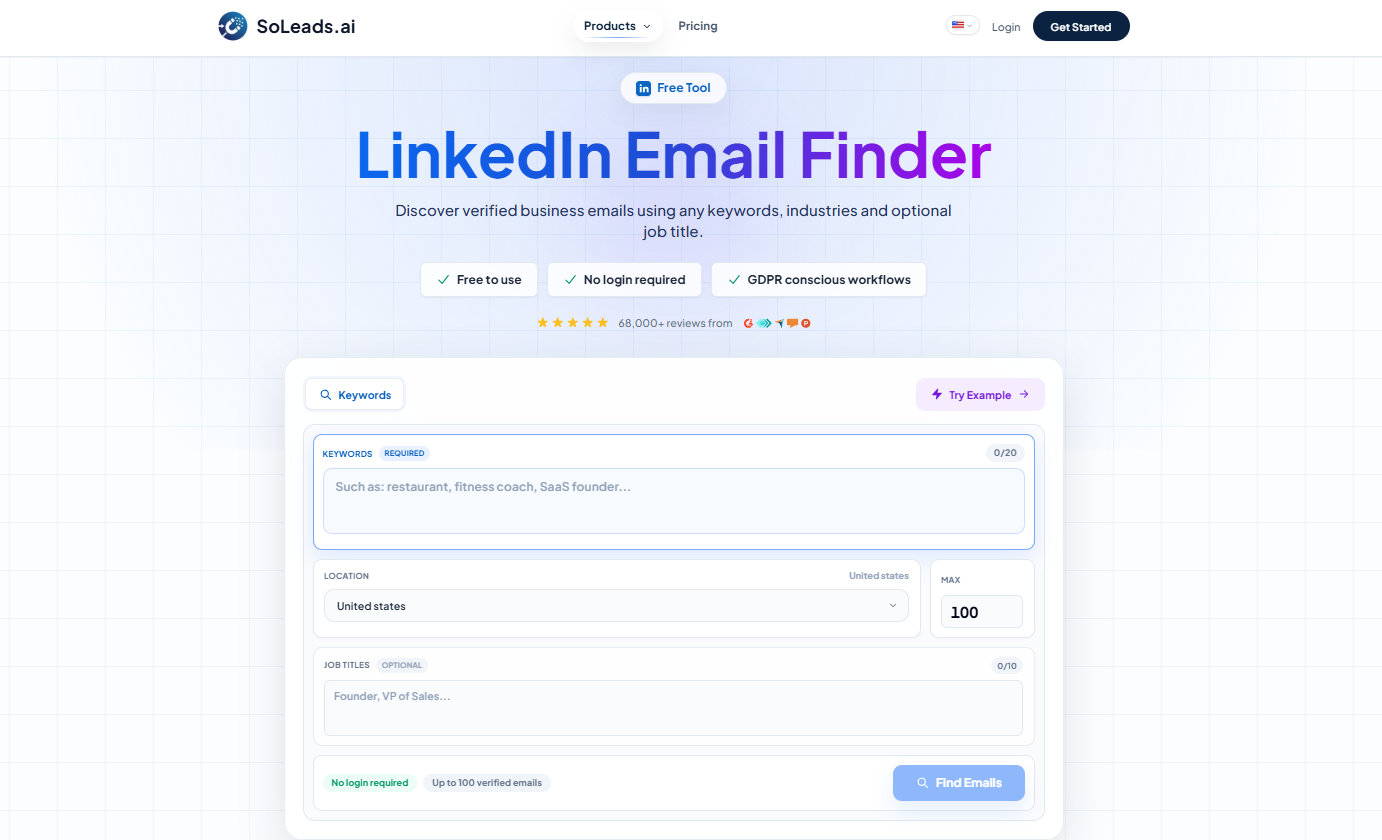
🎉Best for: Teams that need to build targeted prospect lists fast, without manual profile-by-profile research
SoLeads.ai takes a different approach to email finding. Instead of starting with a LinkedIn URL, you start with a description of who you want to reach: a keyword, a job title, and a location. SoLeads.ai does the rest - returning a list of verified, business-ready emails you can use immediately.
✨Standout features:
- Keyword + job title + geography search (no LinkedIn URL required)
- Verified emails only - results are confirmed deliverable before you receive them
- Bulk export to CSV or direct integration with outreach workflows
- Designed for commercial use: emails are sourced and verified for B2B prospecting
🚩Why it's our top pick: Most tools are reactive - find email address from LinkedIn profile or username. SoLeads.ai is proactive - you describe your ICP, and it builds the list. For anyone doing systematic outbound, this removes the most time-consuming part of the prospecting workflow.
👉 Try LinkedIn Email Finder free → SoLeads.ai
Hunter.io
🎉Best for: Small teams that want transparent, source-cited email data
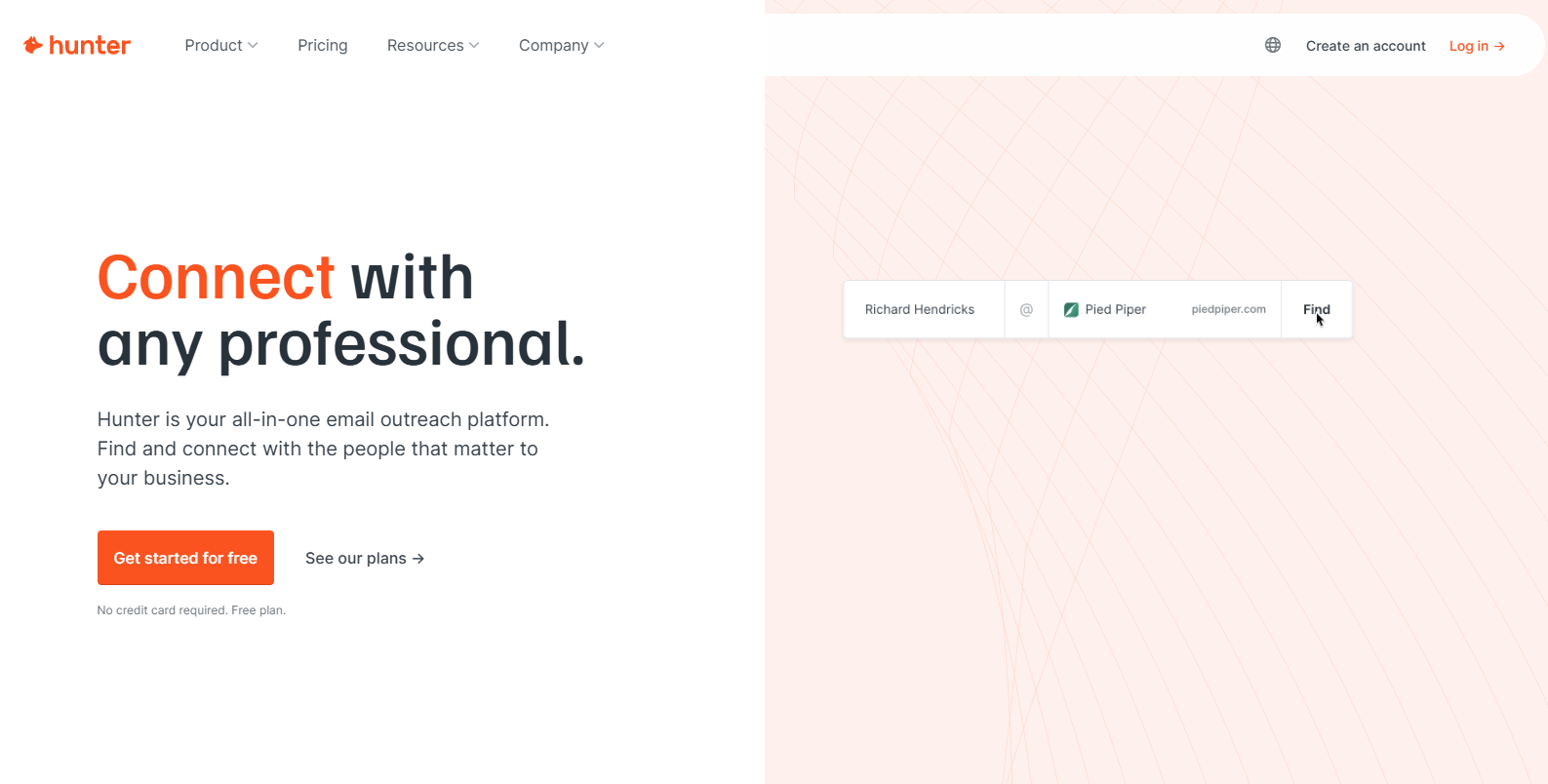
Hunter.io is one of the most established tools in the space. Its Domain Search feature lets you enter a company URL and see all publicly indexed email addresses associated with that domain, along with the sources where they were found.
✨Strengths: Transparent sourcing, confidence scores per email, solid free tier (50 searches/month), easy to use. The Email Verifier is a useful standalone tool even if you find contacts elsewhere.
🔇Limitations: Accuracy can drop for smaller companies or niche markets with less public data. The free tier is limited for serious prospecting.
💰Pricing: Free plan available; paid plans from $34/month.
Lusha
🎉Best for: Sales teams that need both email and phone numbers
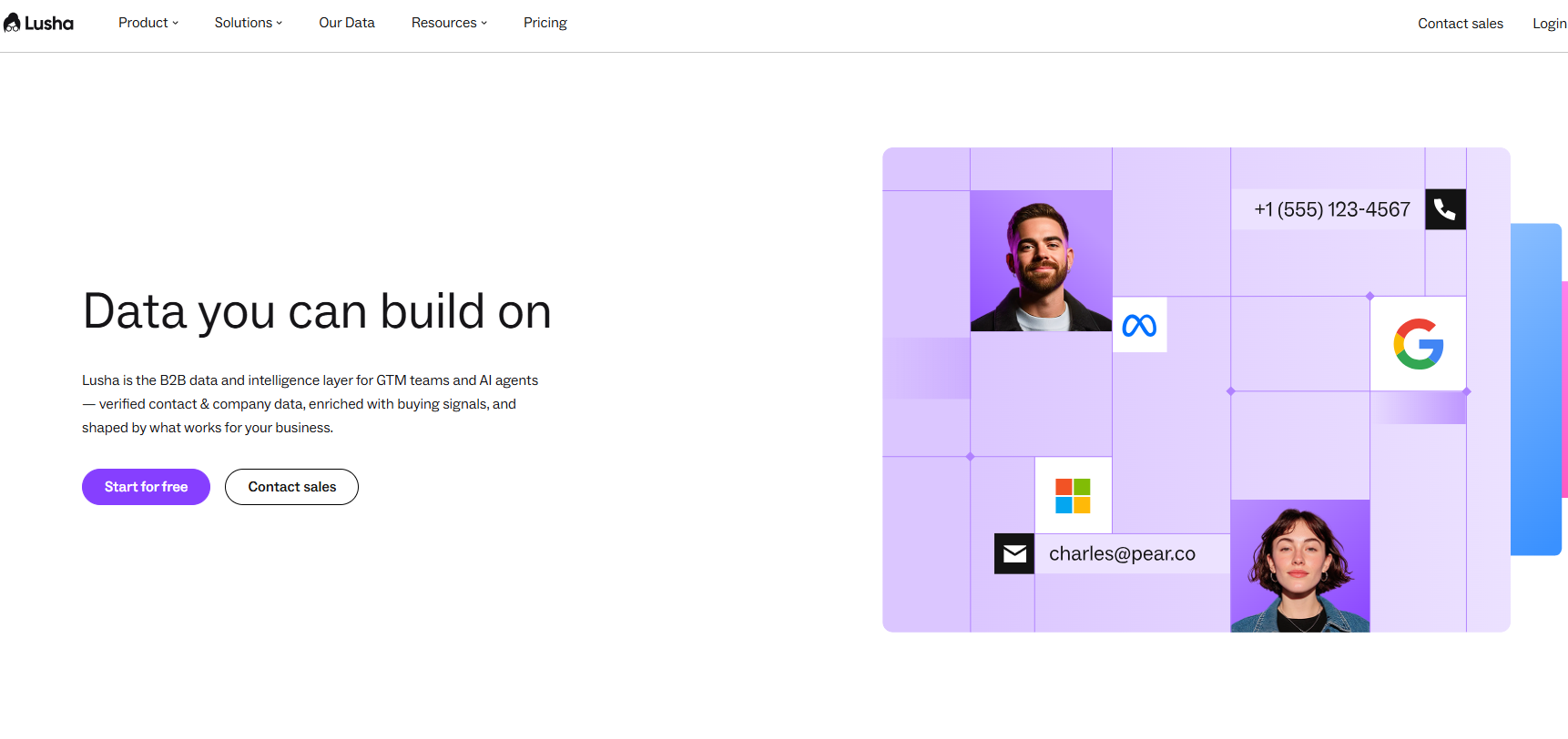
Lusha is one of the few tools that returns mobile and direct phone numbers alongside email addresses, making it a natural fit for teams running multichannel outreach (email + cold call).
✨Strengths: High data accuracy, seamless LinkedIn browser extension, strong CRM integrations (Salesforce, HubSpot, Pipedrive), GDPR-compliant data.
🔇Limitations: The free tier (40 credits/month) is tight. Pricing scales up quickly for high-volume users.
💰Pricing: Free plan; paid plans from $49.9/month.
Apollo.io
🎉Best for: Teams that want a full outbound platform - prospecting, sequencing, and analytics in one
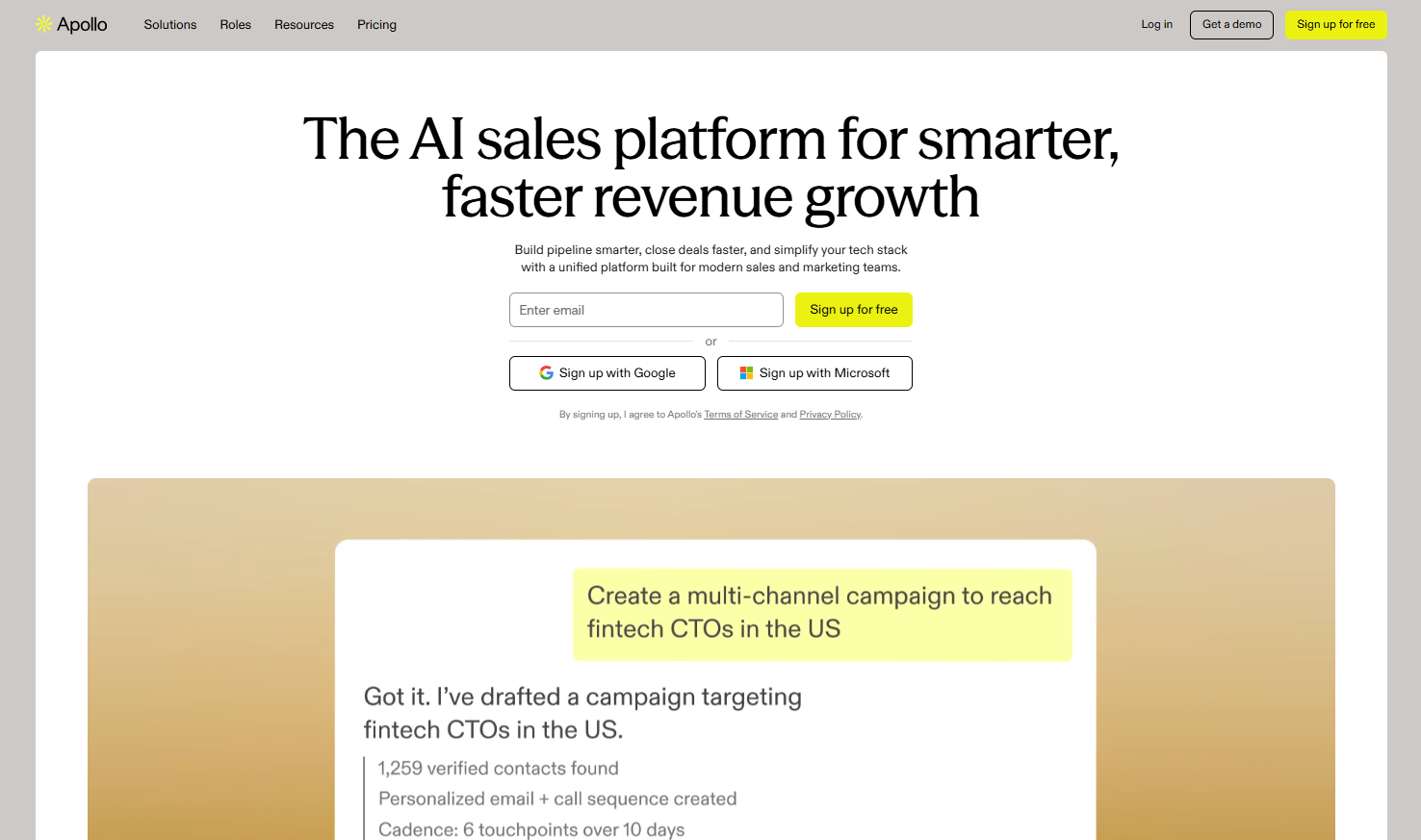
Apollo combines a database of 275M+ contacts with built-in email sequencing, A/B testing, and CRM sync. It's positioned less as an email finder and more as an end-to-end sales engagement platform.
✨Strengths: Huge database, solid filtering options, free tier is genuinely useful, built-in outreach sequences mean you don't need a separate tool.
🔇Limitations: Data accuracy is inconsistent - the sheer volume of records means some are outdated. Works best when combined with a verification step.
💰Pricing: Free plan available; paid plans from $59/month.
Snov.io
🎉Best for: Users who want email finding, verification, and cold email sending in a single platform
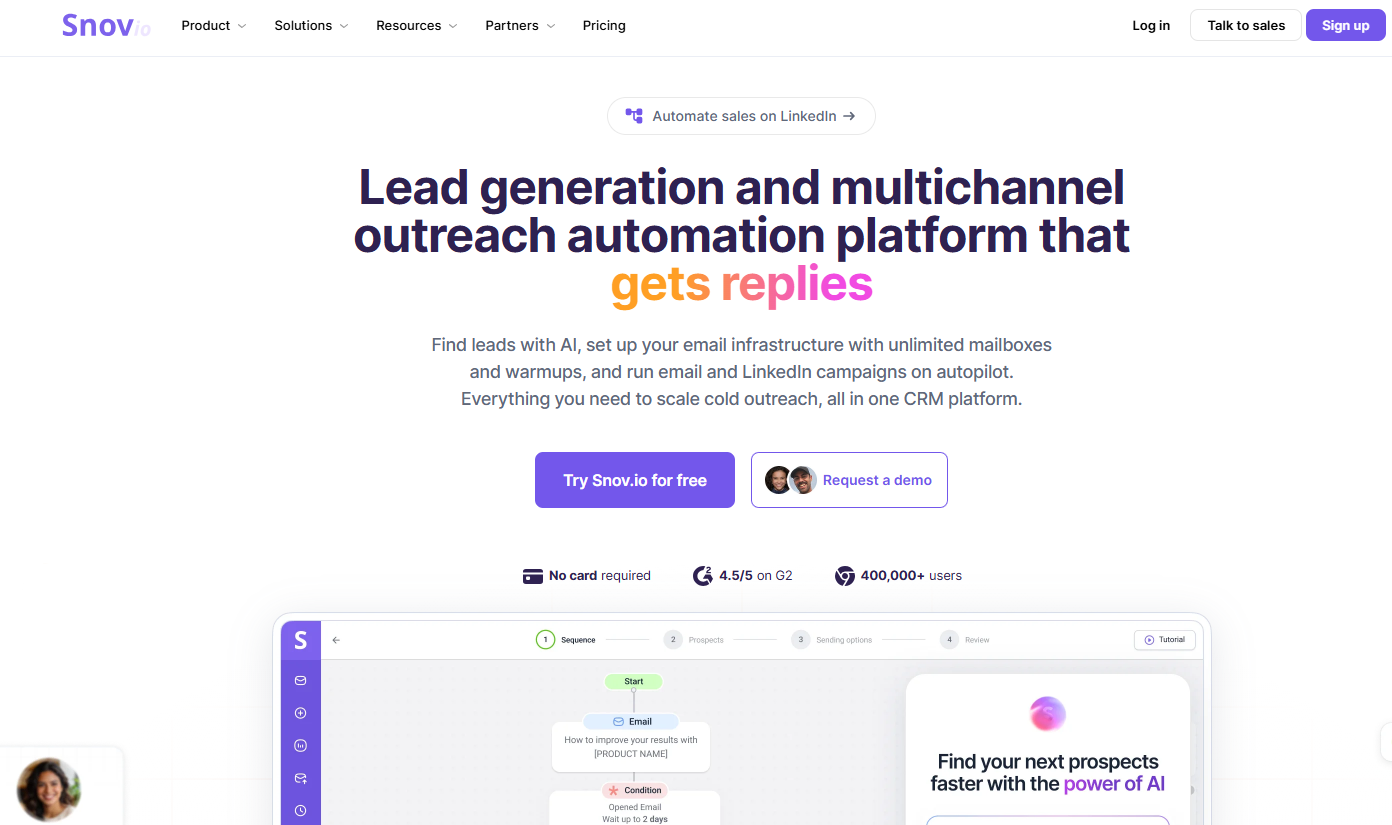
Snov.io bundles email discovery, real-time verification, drip campaign creation, and basic CRM functionality into one tool. For solo operators or small teams that want to avoid managing multiple subscriptions, it's a strong all-in-one option.
✨Strengths: Integrated workflow from finding to sending, Chrome extension for LinkedIn, technology stack finder (useful for SaaS selling).
🔇Limitations: The interface can feel dense; the sending tool is functional but not as sophisticated as dedicated cold email platforms.
💰Pricing: The free tier (50 credits/month); paid plans from $39/month.
Skrapp.io
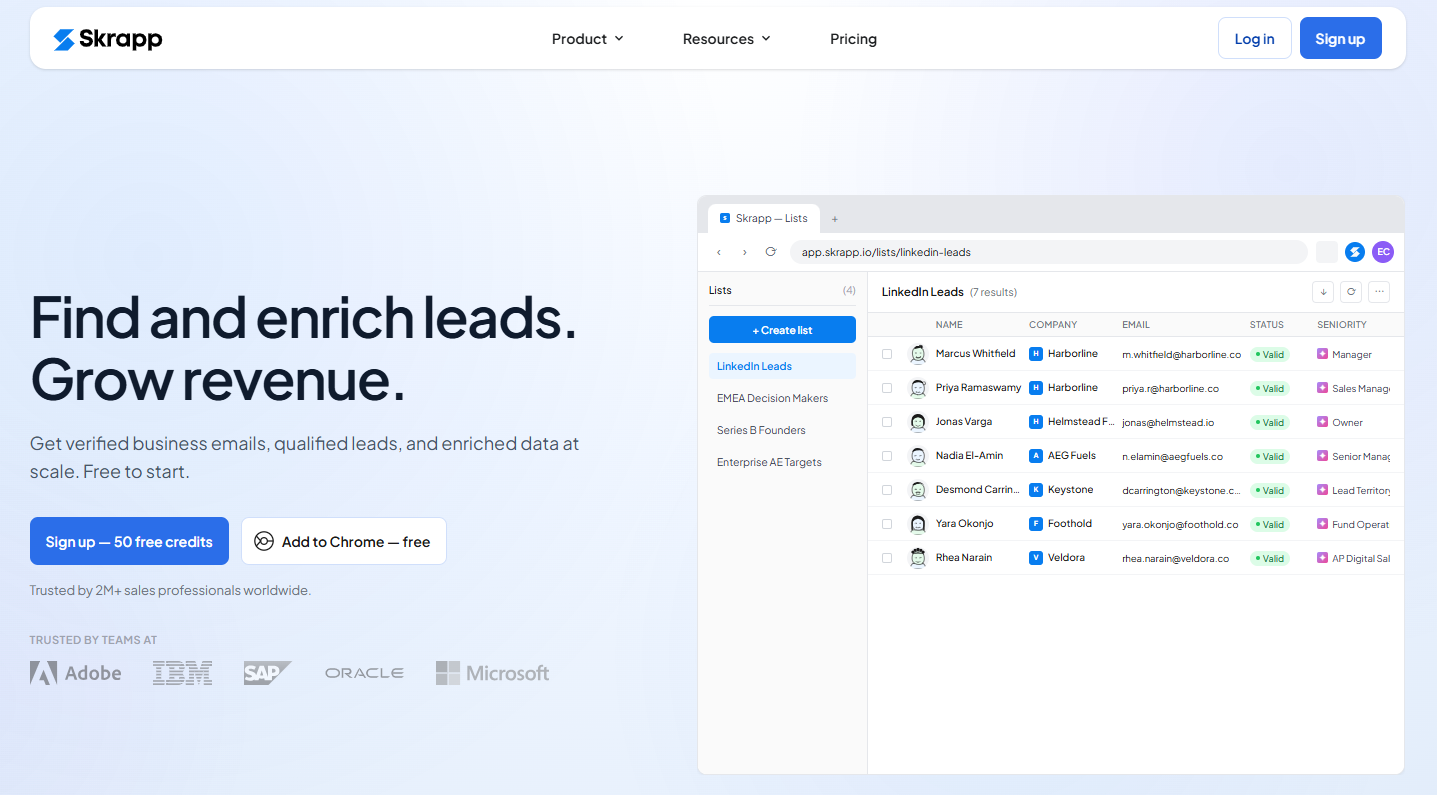
🎉Best for: Teams that exclusively prospect on LinkedIn and want simple bulk extraction
Skrapp is built specifically for LinkedIn - it's not a general-purpose email finder. The Chrome extension activates on LinkedIn and extracts emails as you browse, with a bulk extraction mode for search results pages.
✨Strengths: Simple, focused interface, decent free tier (100 emails/month), only charges for verified deliverable emails.
🔇Limitations: Limited to LinkedIn as a data source, no phone numbers, accuracy varies.
💰Pricing: The free tier (50 credits/month); paid plans from $39/month.
UpLead
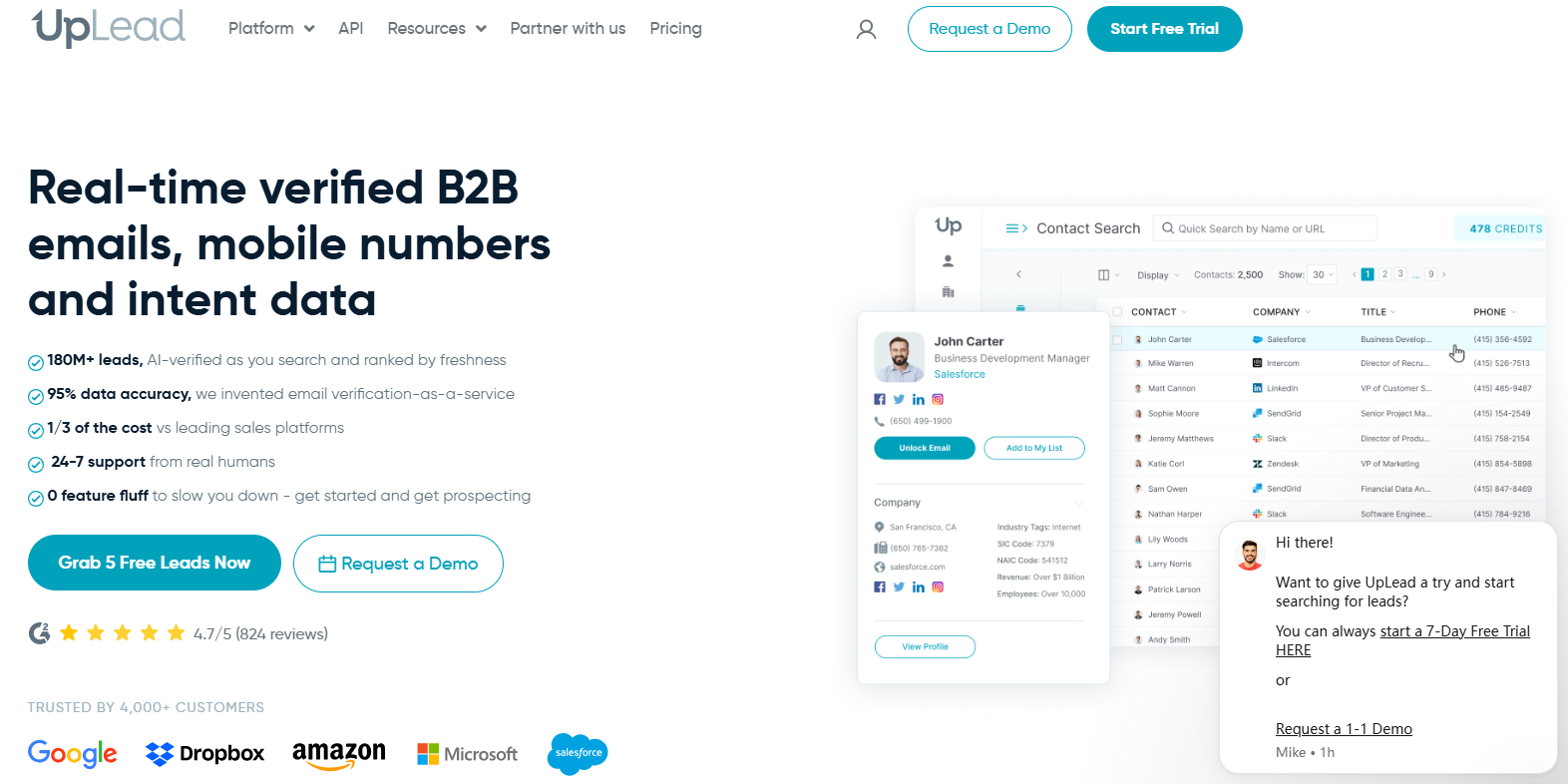
🎉Best for: Teams where data quality is the top priority
UpLead claims a 95% email accuracy guarantee - one of the highest in the industry - and charges credits only for verified, deliverable contacts. This "pay for quality" model means fewer wasted credits on bounces.
✨Strengths: Strong verified accuracy, real-time email verification before you download, solid filtering options, good G2/Capterra ratings (4.7/5).
🔇Limitations: Pricier than most alternatives; the free tier is minimal (5 credits).
💰Pricing: Free trial; plans from $99/month.
AeroLeads
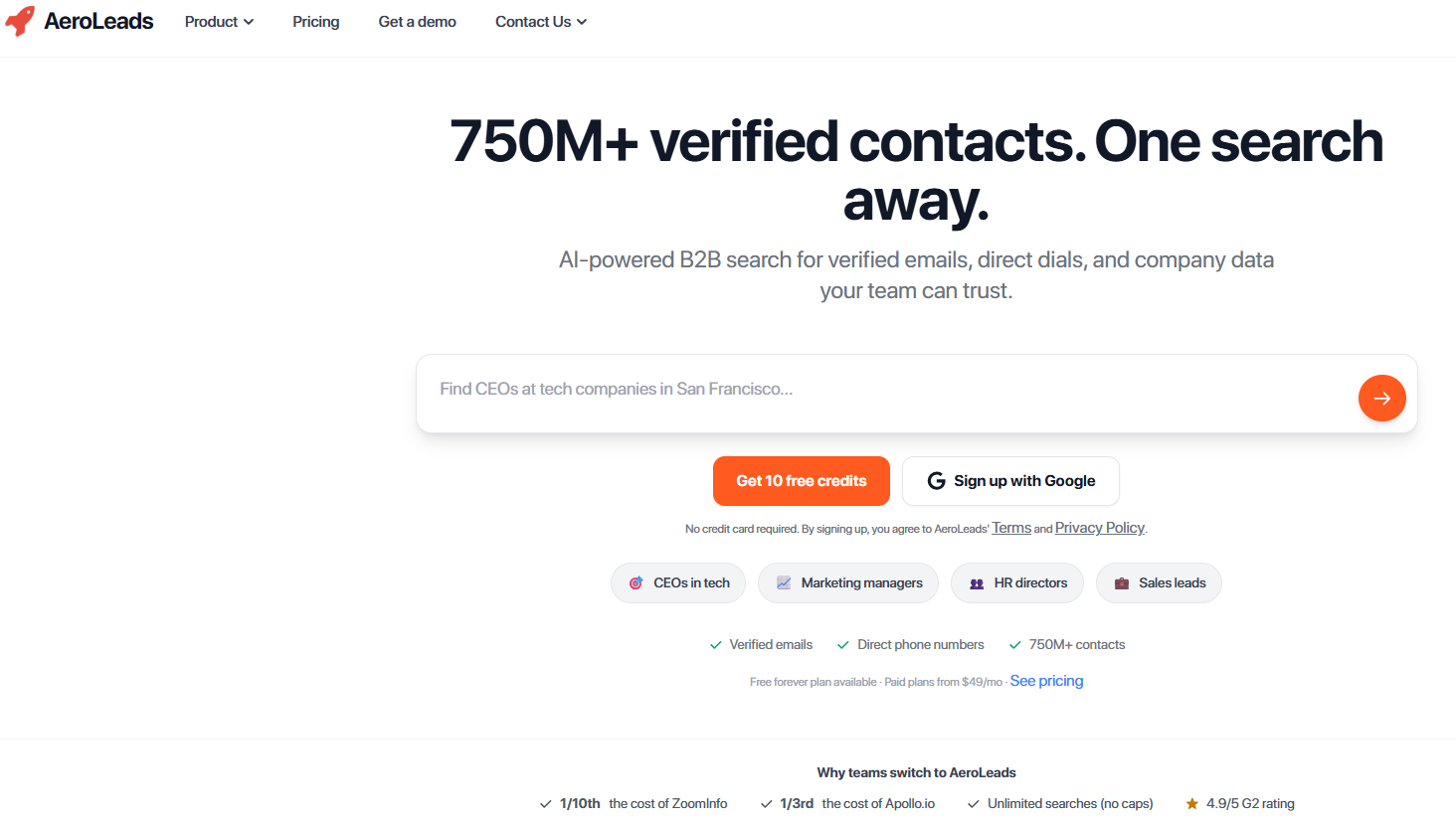
🎉Best for: Small teams wanting LinkedIn integration with CRM export
AeroLeads works as a Chrome extension that activates on LinkedIn, extracting email addresses and phone numbers as you browse, and syncing them directly to CRMs like Salesforce, HubSpot, and Zoho.
✨Strengths: Straightforward to use, good CRM integrations, supports bulk export.
🔇Limitations: Can only process contacts visible to your LinkedIn account; phone number data is limited.
💰Pricing: Free trial; paid plans from $49/month.
LeadFuze
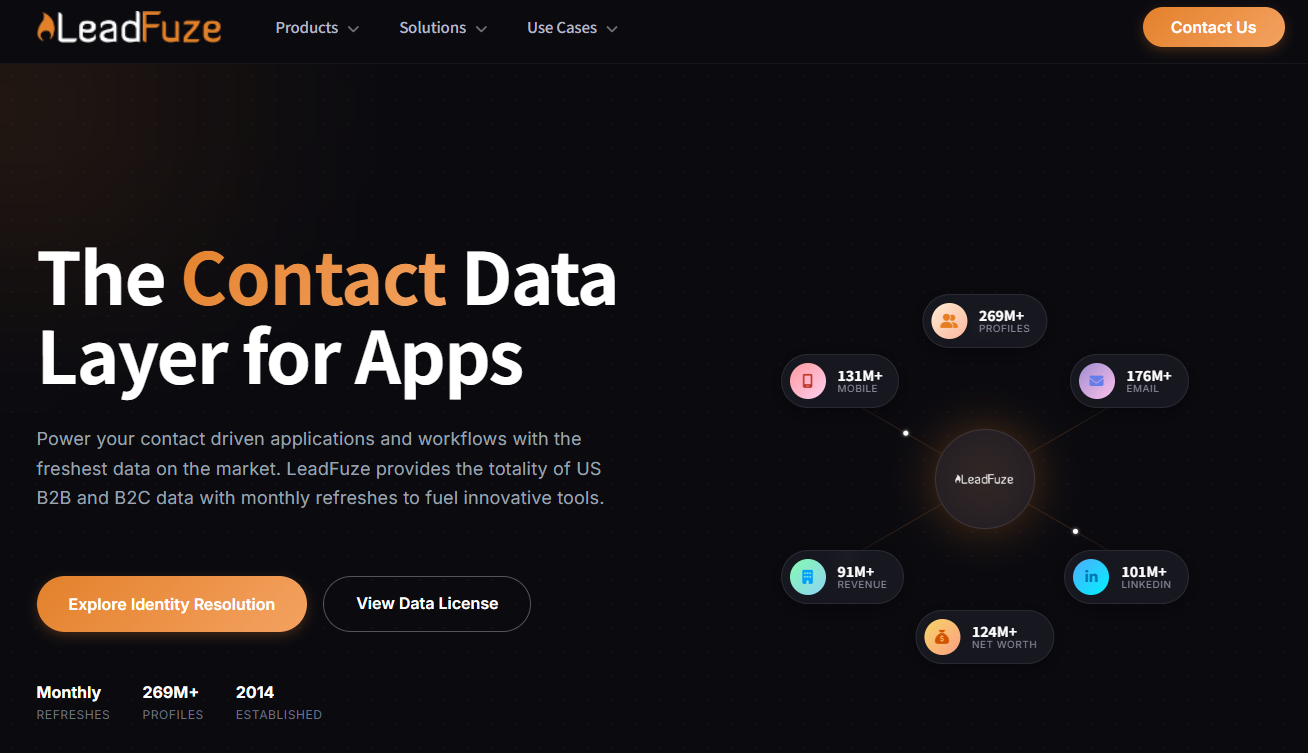
🎉Best for: Enterprise sales teams that need automated lead list building
LeadFuze goes beyond email finding - its "Fuzebot" feature continuously and automatically adds new leads matching your criteria to your lists, making it the most hands-off option for teams running always-on prospecting campaigns.
✨Strengths: Excellent advanced filters (50+ criteria including company tech stack, ad spend, headcount growth), high data accuracy, automated list building.
🔇Limitations: Significantly more expensive than most alternatives; cancellation and billing issues noted in some user reviews.
💰Pricing: Plans from $147/month.
Kaspr
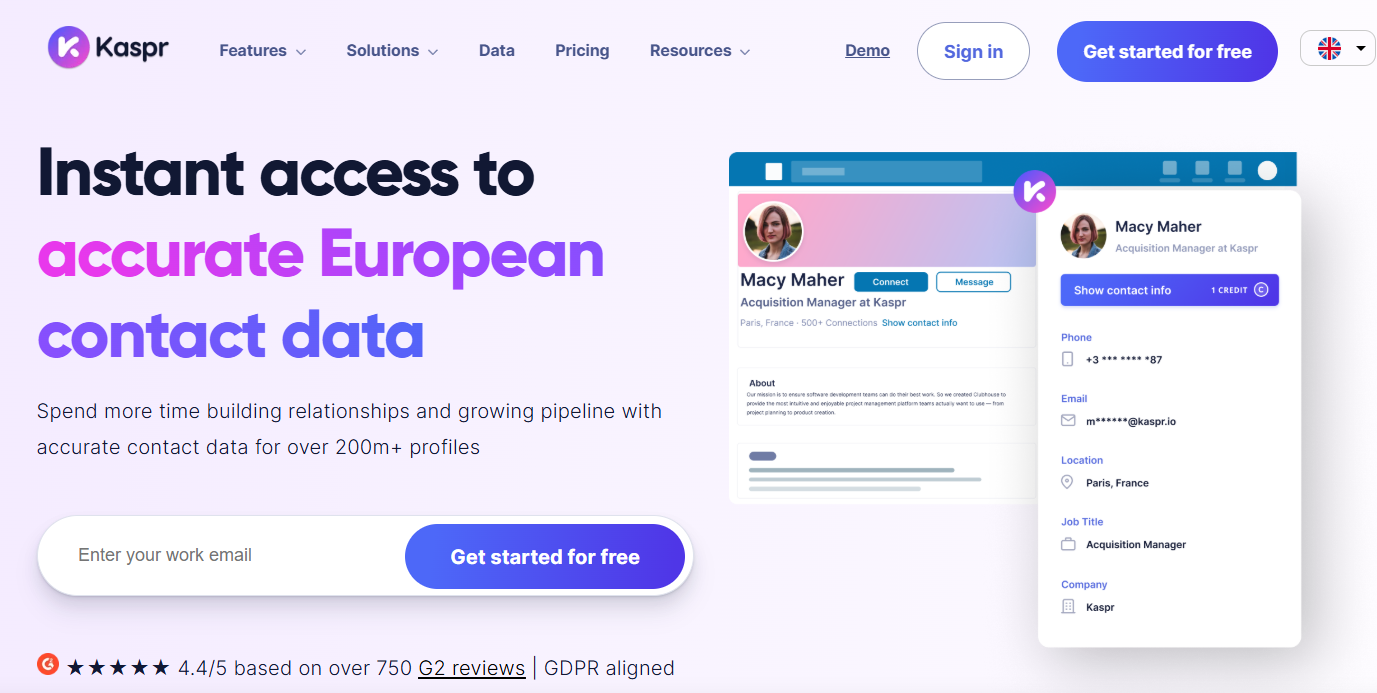
🎉Best for: Teams focused on European markets and GDPR compliance
Kaspr is built with European data regulation in mind, sourcing data through GDPR-compliant channels and offering particularly strong coverage for UK and European contacts.
✨Strengths: Strong GDPR posture, good European data coverage, LinkedIn integration, unlimited B2B email access on some plans.
🔇Limitations: Smaller database than US-focused competitors; less useful if your ICP is primarily North American.
💰Pricing: Free plan; paid plans from €59/month.
Part 5: Real-World Use Cases
Use Case 1: SaaS SDR Building a Target Account List
Scenario: You're selling a B2B SaaS tool to operations leaders at mid-market logistics companies in the US. You need 200 verified contacts by end of week.
Recommended approach:
- Use SoLeads.ai - enter "logistics operations" as keyword, "Head of Operations" or "VP Operations" as title, "United States" as location
- Export the resulting verified email list
- Layer in a LinkedIn cross-check using LinkedRadar to confirm titles and current employment
- Load into your cold email tool and launch your sequence
Time to complete: Under 2 hours, versus 2+ days of manual research
Use Case 2: Recruiter Reaching Passive Candidates
Scenario: You need to source senior engineers in Berlin without using costly InMail credits.
Recommended approach:
- Use Sales Navigator to filter for Software Engineers / Engineering Managers in Berlin with 5+ years experience
- Collect names and company data
- Run through Kaspr (strong European data) for email enrichment
- Reach out via direct email with a brief, respectful message
Use Case 3: Agency Delivering Prospect Lists for Clients
Scenario: A client asks you to build a list of 500 decision-makers in the UK retail sector within 48 hours.
Recommended approach:
- Define ICP: titles (Buying Director, Head of Merchandising, Chief Commercial Officer), industry (retail), location (United Kingdom)
- Run SoLeads.ai batch search to generate the initial list
- Verify emails with a secondary tool if needed for additional confidence
- Deliver a clean CSV with name, title, company, LinkedIn URL, and verified email
Use Case 4: Founder Cold-Outreaching Early Customers (Zero Budget)
Scenario: Pre-revenue, no budget for paid tools, need your first 50 customers.
Recommended approach:
- Export your LinkedIn connections (Method 2 - completely free)
- Review Contact Info on the most relevant 30–50 profiles (Method 1)
- Use Google X-Ray search for targets you can't find through the above
- Guess email formats using publicly available data + free email checkers
- Send personalized, manual cold emails - at this stage, quality beats volume
Part 6: What to Do After You Find the Email
Finding the email is step one. Getting a reply is a different skill entirely. Once you have your list, you need to write cold emails that actually get responses by focusing on personalization—a few fundamentals make the difference between a campaign that converts and one that goes straight to spam.
Verify Before You Send at Scale
A bounce rate above 3–5% will damage your sender domain reputation. Before launching any campaign of 50+ emails, run your list through an email verification tool. Most of the tools listed above include this, or you can use standalone verifiers like NeverBounce or ZeroBounce.
Write a Subject Line That Earns the Open
Five subject line formulas that consistently perform well in B2B:
- Specificity: "Question about [Company]'s Q3 hiring plans"
- Mutual connection/context: "Saw your talk at SaaStr - quick question"
- Direct value statement: "How [Similar Company] cut CAC by 40%"
- Curiosity gap: "Weird question about your outbound process"
- Ultra-short: "Intro?" or "Quick ask"
Avoid: all-caps, excessive punctuation, generic openers like "Hope this finds you well."
Personalize the First Line
The fastest way to get a reply is to prove you've done your homework. Reference something specific: a recent LinkedIn post, a company announcement, a piece of content they published. One genuine, specific sentence outperforms any amount of generic personalization merge-tag tricks.
Follow Up - But Not Spammily
Data consistently shows that 70%+ of email replies come after the first follow-up. A healthy sequence looks like:
- Email 1: Full pitch, personalized
- Email 2 (3 days later): Short follow-up, add a new angle or resource
- Email 3 (5 days later): Brief check-in, easy way to say no ("Is this not a priority right now?")
- Email 4 (7 days later): Final "breakup" email
Three to five touches is the sweet spot. Beyond that, you're more likely to burn the relationship than win the deal.
Direct outreach works better when it is supported by a visible, useful presence. If LinkedIn is part of your follow-up sequence, this guide to scheduling LinkedIn posts explains how to keep your profile or Company Page active without manually publishing every update.
Track and Optimize
Monitor open rate, reply rate, and positive reply rate (not just any reply). If your open rate is low, test subject lines. If opens are high but replies are low, the body copy or offer needs work. If positive replies are low, you may have a targeting problem - the list is right, but the pitch isn't matching their pain points.
Part 7: Frequently Asked Questions
Is it legal to find emails on LinkedIn?
The legality depends on your jurisdiction and how you use the data. In most cases, finding and using publicly available professional contact information for legitimate business outreach is legal. However, you should be aware of three key frameworks:
GDPR (EU/UK): You must have a legitimate interest to contact someone, include opt-out mechanisms in every email, and not contact individuals who have opted out. B2B emails to business addresses are generally lower risk than personal emails.
CAN-SPAM (US): Requires a clear opt-out mechanism, an accurate "From" address, and a physical mailing address. No deceptive subject lines.
CASL (Canada): Stricter than CAN-SPAM - requires express or implied consent. Implied consent includes existing business relationships.
LinkedIn's Terms of Service restrict direct platform collection of its platform without authorization. Using a reputable third-party tool that sources and enriches data responsibly is a different matter from deploying bots to export LinkedIn directly.
Bottom line: use a compliant tool, always include an opt-out in your emails, and never contact people who have previously opted out.
How accurate are LinkedIn email finder tools?
Accuracy varies significantly by tool and use case. Industry averages for email finder tools tend to range from 50–75% deliverability. The best tools - those that use real-time verification and multi-source enrichment - can reach 85–95% accuracy.
The main factors that affect accuracy: how recently the database was updated, whether the tool verifies in real time vs. relying on cached data, and how well the tool matches common name variations and domain patterns.
Always verify before sending at scale, regardless of which tool you use.
Can I find emails on LinkedIn for free?
Yes. The genuinely free methods include:
- Checking LinkedIn's Contact Info section manually
- Exporting your LinkedIn connections (via Settings → Data Privacy)
- Google X-Ray searches
- Email pattern guessing + free verification tools
For free tiers on paid tools, Hunter, Apollo, Lusha, Skrapp, and SoLeads.ai all offer limited free access.
What's the best tool to find emails on LinkedIn in 2026?
It depends on your workflow:
- For keyword-based bulk prospecting: SoLeads.ai - input your ICP criteria and receive verified emails without manual profile browsing
- For browser-native, one-by-one enrichment: LinkedRadar Chrome extension
- For highest verified accuracy: UpLead
- For combined email + phone data: Lusha
- For European / GDPR-first use cases: Kaspr
- For all-in-one (find + sequence + track): Apollo or Snov.io
How do I verify if a LinkedIn email is actually valid?
Email verification checks three things: that the address is syntactically correct, that the domain exists and has active mail servers (MX records), and that the specific mailbox exists and can receive messages.
Tools like NeverBounce, ZeroBounce, Hunter's Email Verifier, or the built-in verifiers in Apollo, UpLead, and SoLeads.ai handle this automatically. If you're verifying manually, free tools like mail-tester.com can check individual addresses.
Does LinkedIn allow email discovery?
LinkedIn's User Agreement restricts unauthorized automated collection from its platform. This applies to scripts that systematically collect data directly from LinkedIn's servers.
This is distinct from using a third-party enrichment tool that has built its own database from permitted and publicly available professional information. Reputable email finder tools should explain their sourcing and match search criteria against their own enriched datasets instead of collecting LinkedIn pages in real time.
When in doubt, choose tools that are transparent about their data sourcing practices.
What's the difference between an email finder and an email verifier?
An email finder discovers an email address you don't already have - either by searching a database, cross-referencing data sources, or extracting from a profile.
An email verifier checks whether an email address you already have is valid, active, and likely to receive messages without bouncing.
Most serious prospectors need both. The best tools (UpLead, SoLeads.ai, Snov.io) handle both in one step - they find and verify before delivering results.
The Bottom Line: Which Method Is Right for You?
If you're just starting out and have no budget: Begin with LinkedIn's built-in export, check Contact Info sections manually, and use free tiers on Hunter or Apollo.
If you're a small team doing active outbound: A Chrome extension like LinkedRadar for daily prospecting, combined with SoLeads.ai for building targeted lists by keyword and job title, covers most use cases at low cost.
If you're scaling a sales team with systematic prospecting: SoLeads.ai for list building, Sales Navigator for advanced filtering, and a CRM integration to manage the workflow - that's the stack that removes the most friction.
If data quality is mission-critical: UpLead's pay-for-verified-only model or SoLeads.ai's built-in verification ensures you're only paying for contacts that will actually reach a live inbox.
The single most important principle: always verify before sending. A clean list of 200 verified emails will outperform a messy list of 2,000 unverified ones - in reply rate, deliverability, and long-term sender reputation.
Ready to find verified emails by keyword, job title, and location in minutes?
👉 Try LinkedIn Email Finder Free → SoLeads.ai
No manual profile-browsing. No separate verification step. Just a list of verified, business-ready emails matching your exact ICP - ready to go.
Build your next lead list